 Business Card
How to add a business card to iPhone Contacts
The goal is not a photo of a card, it is a contact you can actually call. Here are two ways to get there, without a pile of half-finished entries.
Updated
Free, with apps already on your iPhone
Create a contact in the Contacts app
The Contacts app (or the Phone app's Contacts tab) is already on every iPhone.
- Open Contacts and tap + to create a new contact.
- Type the name, company, phone, email and any other details from the card.
- Tap Done. Keep the paper card somewhere if you want the original.
Free and exact, but slow: every field is typed by hand and it is easy to misread a long phone number.
With Business Card
Scan, check, then save
Business Card reads the card first and hands the result to the system contact editor, so you stay in control before anything is saved.
- Scan the card with +, then the document camera or a photo.
- Check the recognized name, phone, email and website; correct anything and add a job title or note.
- Open the card and tap Save to Contacts.
- Review the fields in the system contact editor, then tap Done to add the person to your contacts.
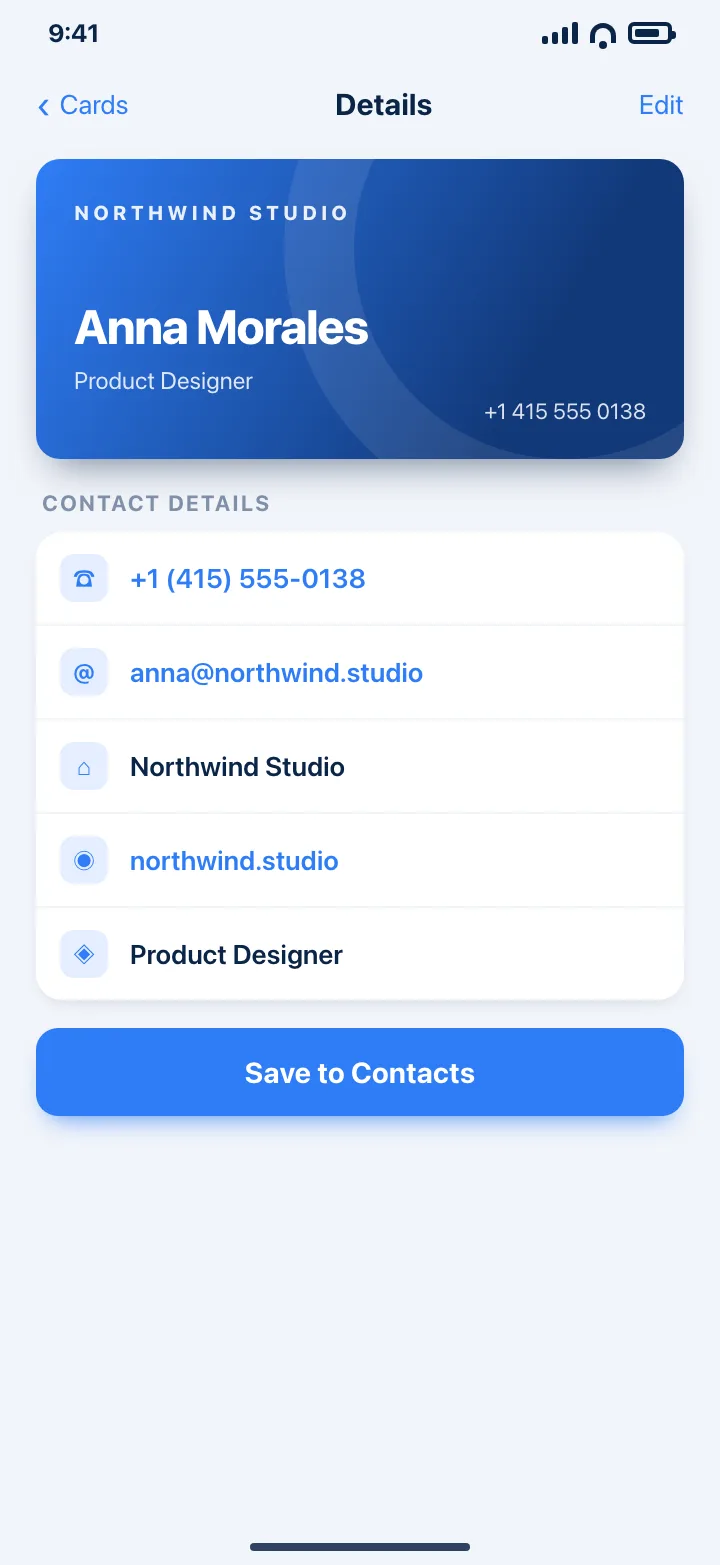
Nothing is written to Contacts without your confirmation. You can also share the card as a vCard instead.
Download on theApp StoreTips
- Check the country code before saving a contact you met abroad.
- Add a short note like where you met them; it is more useful later than a perfect job title.
- If the card has two numbers, put the second one in the note field before saving.
Questions
Does the app add contacts automatically?
No. It opens the system contact editor with the details filled in, and you decide whether to save them.
Can I keep the card image as well?
Yes. Front and back photos stay attached to the card in the app, even after you save the contact.
Will the contact sync to my other devices?
Once saved, it is a normal iCloud contact. The card itself syncs with iCloud when sync is available on your plan.